
Screen Share on the OPS-Chromebox

The Promethean Screen Share app allows you to quickly connect and mirror student devices and lends itself perfectly to classroom collaboration and student-driven learning.
Screen share with touchback is supported on Windows® (version 8.1 or above) and MacOS® (version 10.13 or above).
To download the sender for your device, visit share.one.prometheanworld.com.
To begin connecting devices, swipe up from the bottom and select Screen Share from Apps.
A floating connection screen appears with your unique Panel ID. You may move this anywhere on your screen. You may name your panel, tap the reset button to generate a new 6-digit panel ID, or tap the people icon to enter the waiting room.
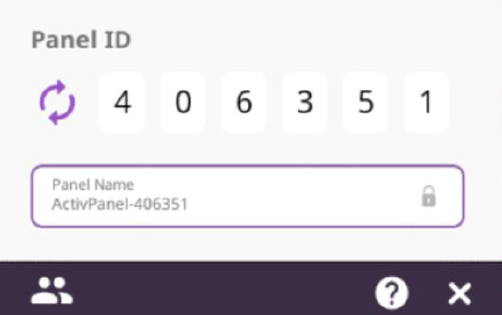
To connect from a device with the Share Screen Sender, enter the Panel ID. Next, enter your name, and be sure to enable touchback. Select Enter Waiting Room.
To access the Screen Share waiting room, tap the people icon in the bottom left-hand corner of the connection screen.

Connected devices will display within the Waiting Room and those that enabled touch back will have a dot beside their name.
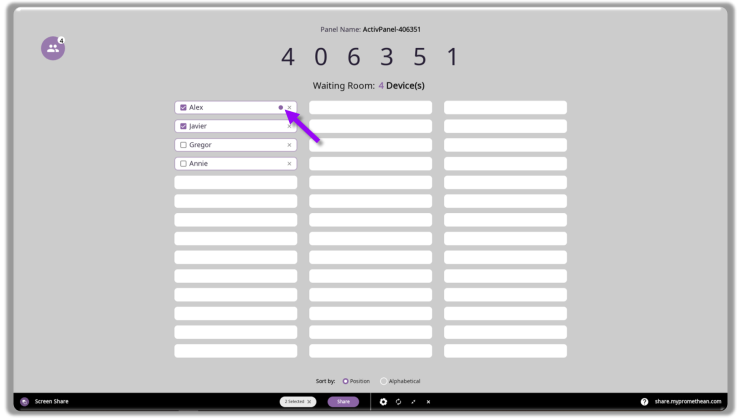
You may have up to 42 devices in your waiting room. Select any name from the waiting room list to mirror this student’s device to your ActivPanel. Or tick the boxes next to students’ names to mirror up to 4 devices simultaneously. Once you have selected their names, tap the Share button at the bottom of the Waiting Room window.
To remove a student, simply tap the X next to their name. You will be prompted to confirm their removal.
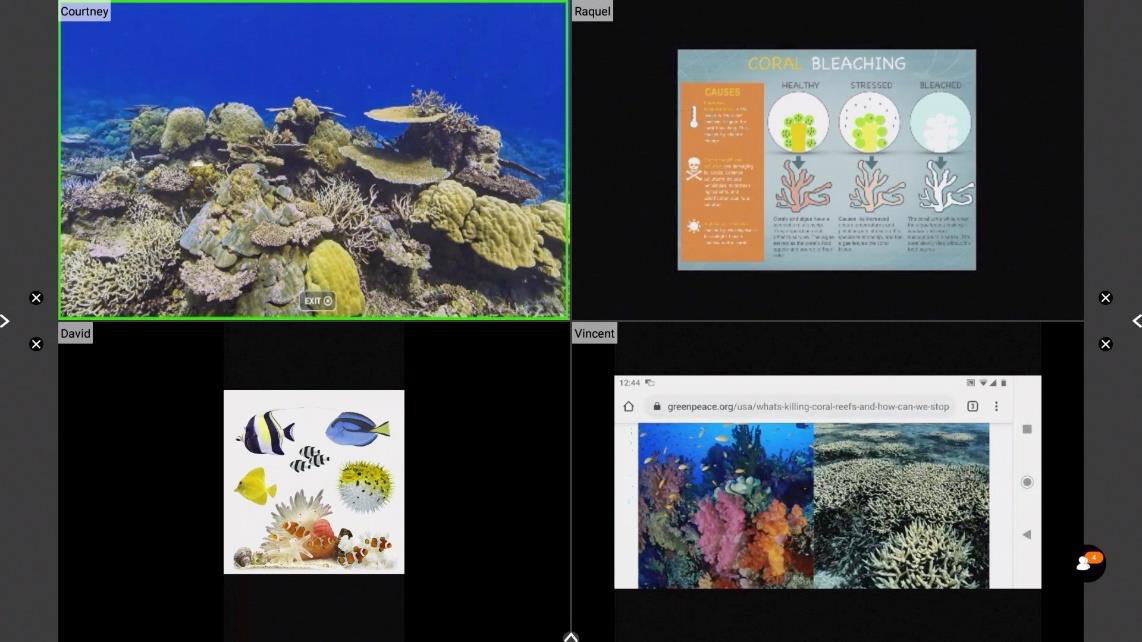
With Touchback enabled, you may navigate connected devices in real time. Possible classroom examples include becoming untethered, sharing applications or programs, allowing students to display work and demonstrate learning, and more.

- Practice using the Promethean Classroom Essential apps.
- Open a PDF or document you already have from your Files.
- Use Annotate to write on your existing resource.
- Select Screen Capture and take a screenshot. Select Open in Whiteboard.
- Practice using the Whiteboard tools.
- Open the Spinner and create a new list for an upcoming activity.
- Open the Timer and set an activity time.
- Use Screen Share and practice connecting a device.